How to Set Up XCodes IPTV on Amazon Fire Stick (2026 Step-by-Step Guide)
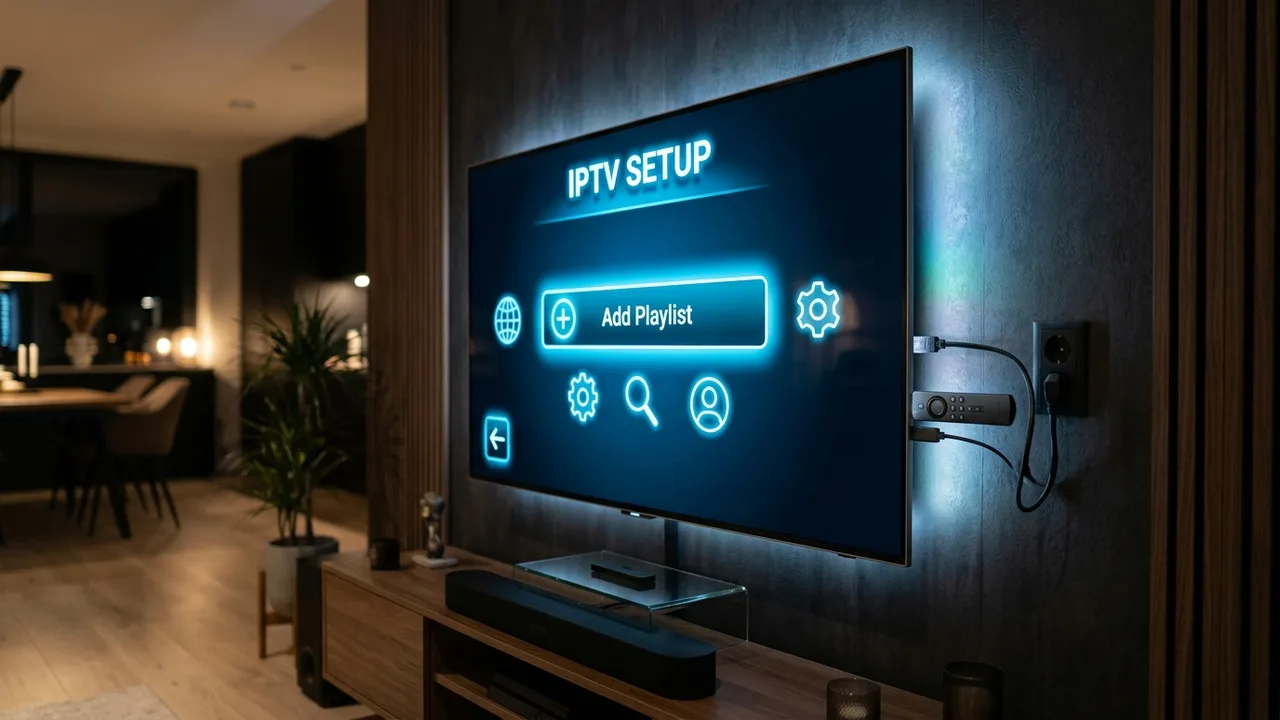
The Amazon Fire TV Stick remains the most popular hardware choice for home IPTV streaming in the United States. Its dedicated hardware decoder handles 4K 60 FPS video effortlessly, and the remote provides instantaneous navigation through thousands of channels. When you pair an Amazon Fire TV Stick 4K Max or Fire Stick Lite with high-bitrate XCodes IPTV streams, you transform your television into a global entertainment center without high cable television bills.
This guide walks you through enabling developer settings, sideloading the Downloader utility, installing top-tier players like TiviMate and IPTV Smarters Pro, and connecting your credentials in under 5 minutes.
Table of Contents
1. Preparing Your Fire Stick (Enabling Developer Options) 2. Installing Downloader from the Amazon Appstore 3. Installing and Configuring TiviMate IPTV Player 4. Alternative Option: Installing IPTV Smarters Pro 5. Performance Optimization & Anti-Freeze Tips 6. Expert Recommendation & Next Steps1. Preparing Your Fire Stick (Enabling Developer Options)
Because the Amazon Appstore does not host third-party IPTV players directly, you need to enable unknown application installation. Amazon updated Fire OS in recent software releases, moving this setting behind a quick developer menu unlock:
- From the Fire Stick home screen, select the Settings gear icon on the far right.
- Click on My Fire TV (or Device & Software).
- Click About.
- Hover over your Fire TV Stick device name and click the center remote button 7 times rapidly until you see the notification: "No need, you are already a developer."
- Press the back button once to return to My Fire TV. You will now see Developer Options listed.
- Open Developer Options and switch Install Unknown Apps (or Apps from Unknown Sources) to ON.
2. Installing Downloader from the Amazon Appstore
Downloader by AFTVnews is the industry-standard utility used to safely download Android APK files onto Fire OS devices.
- Return to your Fire Stick home screen and click Find → Search.
- Type Downloader and select it from the search list.
- Click the orange Downloader icon and choose Get / Download.
- Once installed, launch Downloader and click Allow when prompted to access media files.
3. Installing and Configuring TiviMate IPTV Player
For Fire Stick users, TiviMate is widely considered the cleanest, most responsive IPTV player available. It mimics the look and feel of a premium satellite television interface with instant Electronic Program Guide (EPG) loading.
- Open Downloader and click on the URL search bar.
- Type in the direct Downloader quick-code for TiviMate: 278077 (or type
tivimate.com) and click Go. - Wait for the APK download to finish, then click Install.
- Open TiviMate and click Add Playlist.
- Select Xtream Codes. This is the fastest and most stable connection protocol for XCodes IPTV.
- Input your details exactly as received in your XCodes IPTV order confirmation:
- Server URL: Provided in your WhatsApp setup text.
- Username: Your unique subscriber ID.
- Password: Your account security key.
- Click Next and check the box to Include VOD (Movies & Series).
- Click Done. TiviMate will spend roughly 30 seconds caching your 28,000+ live channels and 140,000+ on-demand titles!
4. Alternative Option: Installing IPTV Smarters Pro
If you prefer a layout with separate, distinct tiles for Live TV, Movies, and Box Sets, IPTV Smarters Pro is an outstanding choice. You can install it using Downloader code 80911 or via direct download. When prompted, select Login with Xtream Codes API and enter your credentials.
5. Performance Optimization & Anti-Freeze Tips
To ensure flawless streaming during high-stakes NFL Sunday football or UEFA Champions League tournaments, implement these three hardware tweaks:
- 5 GHz Wi-Fi Band: Connect your Fire Stick to your router's 5 GHz network rather than 2.4 GHz. 5 GHz provides three times more bandwidth throughput, preventing buffering during 4K HDR streams.
- Clear App Cache: Every few weeks, go to Settings → Applications → Manage Installed Applications → TiviMate → Clear Cache to keep guide data swift.
- Adjust Buffer Size: In TiviMate Settings → Playback, set the buffer size to Normal or Large to smooth out minor ISP micro-drops.
Experience 4K IPTV on Your Fire Stick Today
Join thousands of American viewers enjoying 28,000+ live channels, complete live sports coverage, and 140,000+ on-demand titles without a satellite dish.
6. Expert Recommendation
Setting up your Amazon Fire TV Stick with XCodes IPTV takes less than five minutes and eliminates costly $150/month cable packages forever. With dedicated high-capacity servers in Frankfurt, London, and New York, you get reliable uptime and high bitrates across all your favorite networks.